Tiếng Việt
Technical Support
FactoryTalk Hub: allocating entitlements

Summary
FactoryTalk Hub: allocating entitlements
Content
Note: For information on purchasing Entitlements, refer to IN40692 – Software Portal: Ordering licenses
Note: If you are Distributor/OEM and you are purchasing entitlements on behalf of customer. To ensure a smooth experience and proper access for the end customer, please make sure to transfer the entitlement to them after purchase and before the entitlement is allocated to an Organization. You can follow the steps outlined in QA67404 – FactoryTalk Hub: transferring Entitlement to different user for the transfer process.
Important: Once the entitlement is allocated, it cannot be rehosted (released) and allocated to a different Organization.
Important: Only the User that ordered the Entitlement or the Entitlement was transferred to via Commerce Portal (QA67404 – FactoryTalk Hub: transferring Entitlement to different user) will see the Entitlement in the process below.
Once purchased, allocate the Entitlement to your Organization, as described below:
- Log in to FactoryTalk Hub.
- Click the three-line menu button at top left and go to Organizations to confirm you have selected the right Organization.
- Go to View Entitlements.
Note: Only the Owner and the Administrators of a given Organization are able to view this menu.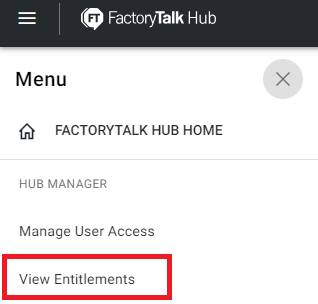
- The new entitlement should appear in the Available for allocation section.
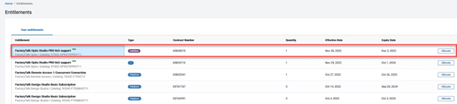
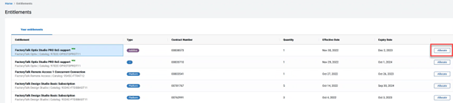
- Click Allocate to the right of the FactoryTalk Optix entitlement.
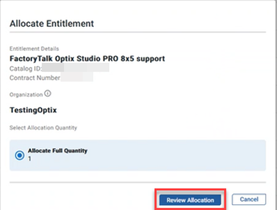
- Confirm the Entitlement, Organization, and Quantity are correct. Allocate by clicking Review Allocation.
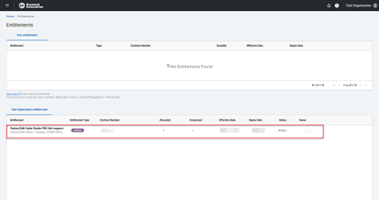
- Verify the entitlement is now allocated under the Organization.
- Go back to the Applications page by clicking the FactoryTalk Hub logo icon at the top left and see if you can access the Service.
You have now successfully allocated the Entitlement.
Source: Rockwell Automation’s Technote database.