Tiếng Việt
Technical Support
Downloading Software with a Serial Number from the PCDC (with Video)
Notes:
- If you wish to download multiple software packages or different software revisions during one download, you can use a download basket. For further details, reference QA36336 – Using download baskets to download Rockwell Automation software products.
- The instructions below require a serial number for downloading software and updates. To explore free software offerings, please refer to IN2212 – Free Rockwell Software Download from the PCDC.
- Video instructions are available at the end of this article.
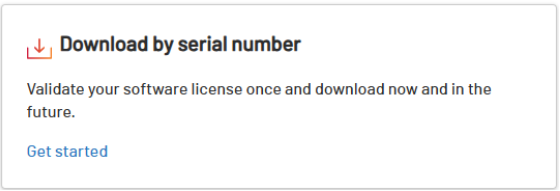
1. Visit the Product Compatibility and Download Center (PCDC) page and click Download by serial number.
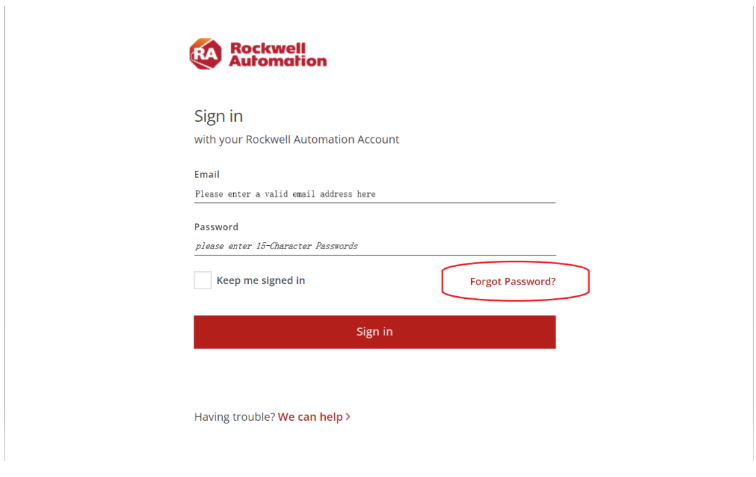
2. Sign in or Create an Account, if prompted. If you already have an account but cannot remember your password, click Forgot Password?
3. Once signed in, enter the Serial Number, select a Matching criteria, then click Validate.
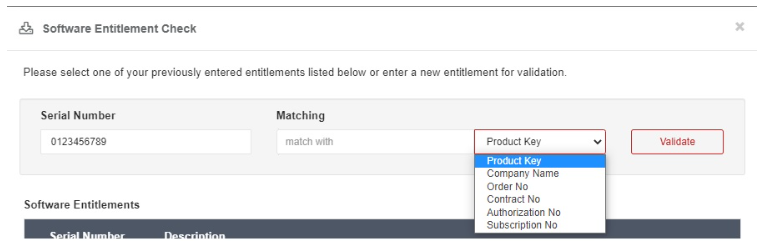
Note: If the matching criteria is set as Company Name, at least four characters of the company name are required. If the company name is shorter than four characters, select a different criteria.
If the matching criteria is set as Authorization No, enter zeroes in front of the number until its total length equals 10 digits.
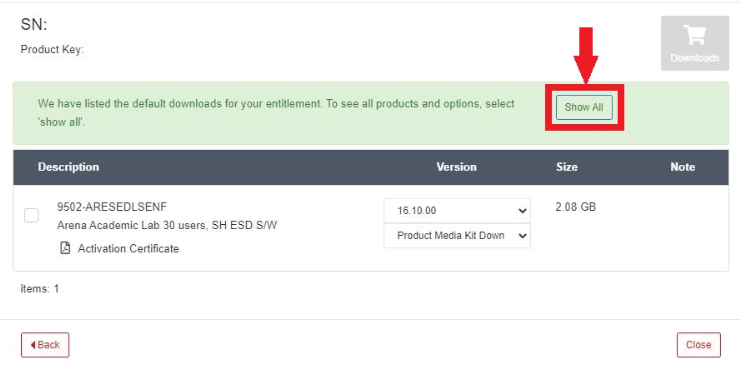
4. After clicking Validate, click Show All to display all products and options available for your license.
5. Select the desired software version, then click the gray download arrow.
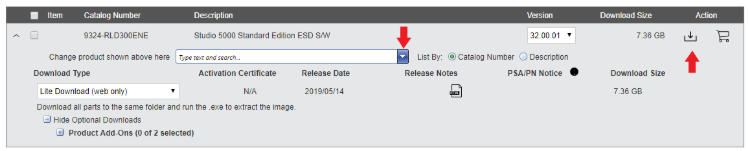
Note: If you entered a Toolkit serial number, you must first search for your product by entering the catalog number. Ensure that browser pop-ups are allowed; otherwise, clicking the download symbol may do nothing.
Note: There is only one installer package for everything required to develop and run FactoryTalk View ME and SE applications. Do not worry if a different FactoryTalk View suite product appears after entering your serial number. For more information, refer to QA51807 – FactoryTalk View: Installation options explained.
6. Review the Rockwell Automation End User License Agreement (EULA), then click Accept and Download.
7. Your browser should automatically download the executable file. The example screens show Google Chrome, but you may use any browser. In Chrome, the download appears at the bottom of the screen or in the downloads area.

Note: Do not change the name of the executable file. It is an integral part of the download process.
8. Once the file has finished downloading, click the down arrow next to the file name to show the properties box, then click Open to run the Download Manager tool.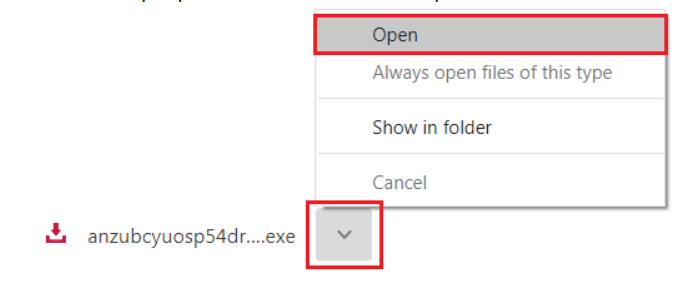
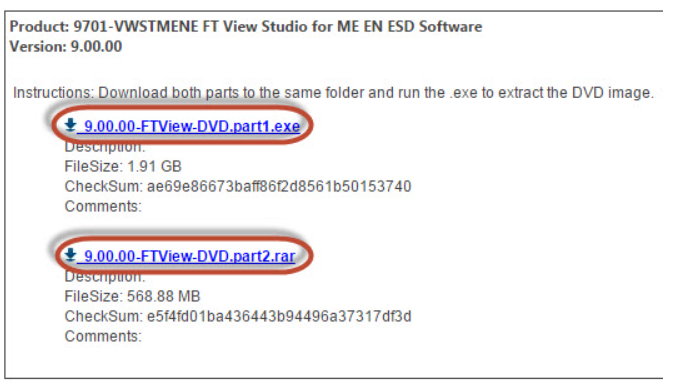
9. You can access Direct Download links on the same page by clicking the direct download link.

Note: When choosing a Direct Download link, make sure to click all required components for download.
Web browsers may have a direct download size limitation of 2 GB. Do not attempt to download more than this per download. If the package is split into parts,download each part separately to avoid losing data.
Note: Under the box with download links, there may be a link for users using a third-party desktop download manager. This can provide a direct link that does not ask for a serial number and product key combination on a remote computer and does not require logging in to the Rockwell Automation website.
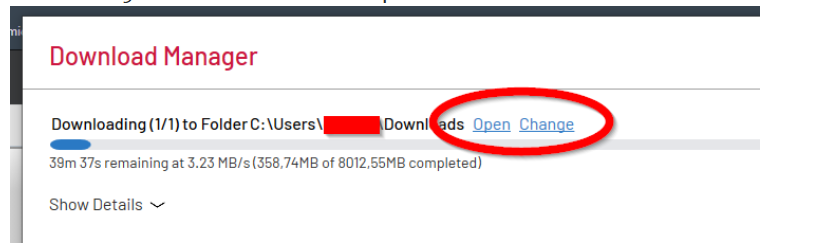
10. When using the Download Manager, the download location is shown above the progress bar. During the download, you can change the download location by clicking Change next to the download path.
11. Once the software is completely downloaded, extract the downloaded content and run the setup.exe file.
Note: Right-click the
setup.exefile and select Run as Administrator.
12. Before installing the software, please check:
Note: Refer to QA17695 – Software Download Troubleshooting Guidelines if you experience issues downloading software.
Video Instructions
Watch the video instructions below:
If the video does not load, open it directly here:
Downloading Software from Rockwell Automation Website