Tiếng Việt
Technical Support
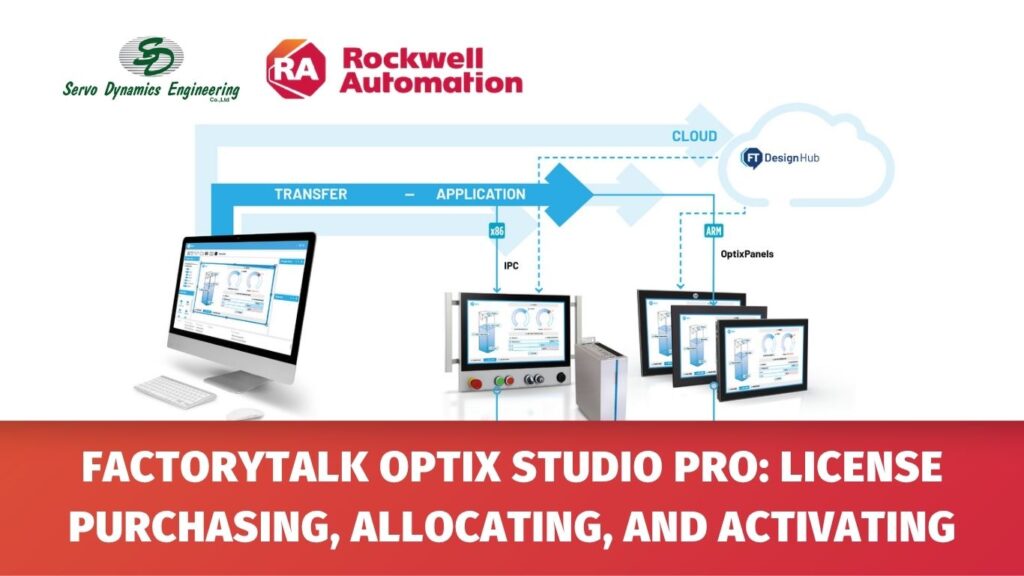
FactoryTalk Optix Studio Pro: License Purchasing, allocating, and activating
Summary
FactoryTalk Optix Studio Pro: License Purchasing, allocating, and activating
Environment
There are two options for FactoryTalk Optix Studio:
- FactoryTalk Optix Studio Standard – locally installable version of the design editor that anyone can use at no cost. The Standard option provides all the HMI editing tools, but not the features related to cloud connectivity, such as GitHub integration, cloud-hosted version control, remote deployment, or multi-user collaboration. No entitlement is required.
- FactoryTalk Optix Studio Pro – cloud-hosted version of the design editor that is run in either a web browser or locally installed version. The Pro option is subscription-based and provides access to all cloud-hosted functionality in both environments. An entitlement is required; new users will receive a 90-day trial of FactoryTalk Optix Studio Pro.
This article covers FactoryTalk Optix Studio Pro.
Answer
Summary of steps
There are three steps to using an entitlement with FactoryTalk Optix: purchase, allocate, and activate. This section will describe each step.
- FactoryTalk Optix licenses are purchased on the Software Portal. This section will walk you through purchasing a FactoryTalk Optix license.
- Once you have purchased and received the entitlement for your purchased license, you’ll allocate it to your Organization. All entitlements must be allocated to an Organization – including FactoryTalk Studio Pro licenses.
- The final step is for a specific user to activate the entitlement so it is available for them anytime they need it.
Step 1: Purchase your FactoryTalk Optix Studio Pro
Follow IN40692 – Software Portal: Ordering licenses
Step 2: Allocate the entitlement to your Organization
- Follow IN40693 – FactoryTalk Hub: allocating entitlements
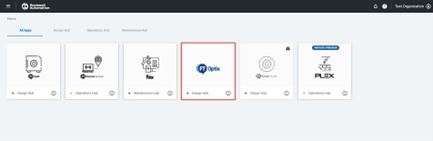
- Go back to the main dashboard by clicking on the FactoryTalk Hub icon on the top left of the page and click on the FactoryTalk Optix tile. This will launch a new browser window.
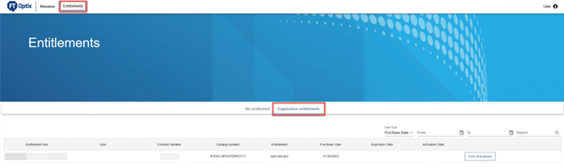
- Navigate to Entitlements --> Organization entitlements and confirm the entitlement is there. The entitlement has now been allocated to the Organization.
Step 3: Activate the FactoryTalk Studio Pro entitlement for your login
FactoryTalk Optix Studio Pro entitlements are activated (assigned) to a user login; This section covers activating a FactoryTalk Optix Studio Pro entitlement.
- Once the entitlement is allocated to an Organization, you assign it to your login by activating it. Click My Entitlement to view entitlements activated for your login. Because you have allocated the FactoryTalk Studio Pro entitlement to your Organization, you should see a message telling you that there is an available entitlement that can be activated:

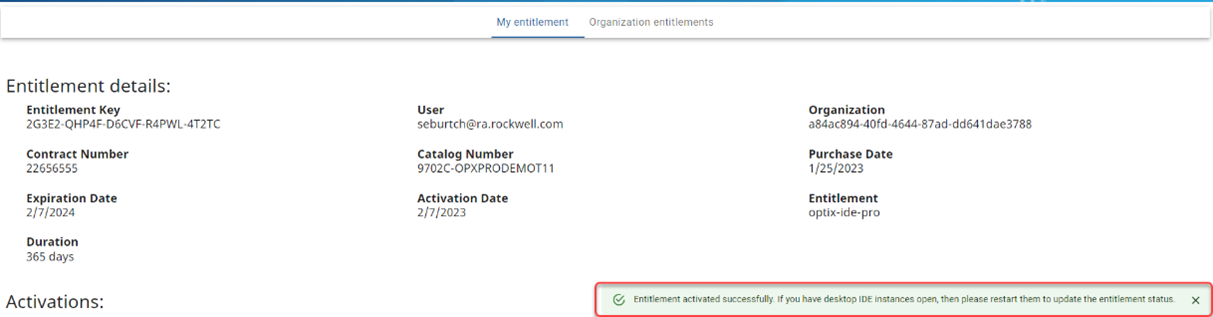
- Click Activate Entitlement to assign the license to your login. You should see a message confirming that you successfully activated the entitlement:
Note: a user can only activate an entitlement to their own login; no user can activate an entitlement to someone else. - You have now purchased, allocated, and activated your FactoryTalk Optix Studio Pro entitlement to your Organization and login.
To confirm that your login now is assigned a FactoryTalk Optix Studio Pro
- Download and install FactoryTalk Optix Studio.
- Open FactoryTalk Optix Studio.
- Select Sign In from the FactoryTalk Optix Studio title bar.
- Enter your FactoryTalk Hub credentials.
- (optional) Select Keep me signed in.
- Select Sign in.
Source: Rockwell Automation’s Technote database.