Tiếng Việt
Technical Support, Consulting, Industrial Automation
FactoryTalk Optix Installation Guide

I’m New to FactoryTalk Optix. Is There a First Steps Guide?
Get started with FactoryTalk® Optix™ and make the most of its features.
Follow the step-by-step instructions below to ensure a smooth setup and configuration process.
- Check System Requirements and review FactoryTalk Optix Architecture.
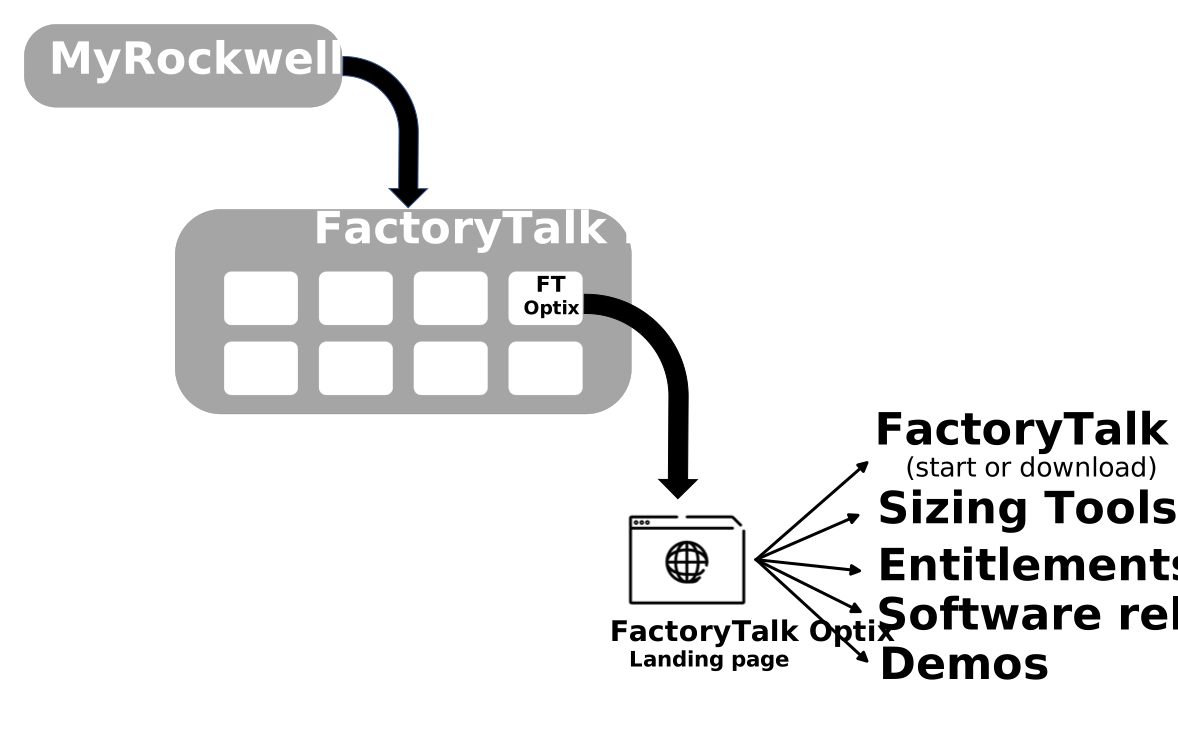
- To access your FactoryTalk Optix application, you must first access FactoryTalk Hub. To do this, you need to create a MyRockwellAutomation account.
- Log in to FactoryTalk Hub.
- To use FactoryTalk® Hub™, you must belong to a FactoryTalk Hub organization.
Learn how to join or create a FactoryTalk Hub organization.TIP:
A company is typically associated with an organization that company users can join.
All entitlements activated for a company are allocated to the organization. - Configure your FactoryTalk® Optix™ Studio:
- Go to Access the FactoryTalk Optix Landing Page.
- Start your configuration with the Initial Settings on the FactoryTalk Optix landing page.
- To download your locally installed FactoryTalk Optix Studio or access your cloud-enabled version, see FactoryTalk Optix Studio.
- (Optional) Set up a FactoryTalk Optix Pro entitlement:
- Go to FactoryTalk Optix Studio Pro Entitlement.
- Purchase a FactoryTalk Optix Studio Pro Entitlement.
- Allocate a FactoryTalk Optix Studio Pro Entitlement to your organization.
- Activate a FactoryTalk Optix Studio Pro Entitlement.
IMPORTANT:
FactoryTalk Optix Studio Pro entitlements are assigned to specific users,
while FactoryTalk Optix Runtime entitlements are assigned to specific runtime devices. - Start FactoryTalk Optix Studio Pro and log in using your MyRockwellAutomation account.
- Select the organization previously associated with your account and entitlement purchase.
- Set up a Runtime entitlement:
- Calculate your Runtime size using the Runtime Sizing Calculator.
- Access the Entitlements section to purchase, allocate, and activate a Runtime entitlement as described in the FactoryTalk Optix Runtime Setup guide.
- Once your application is created, use the Device Sizing Calculator to identify the optimal hardware for running your FactoryTalk Optix application.
TIP:
To create your application, refer to the Basic Concepts and Tutorials sections in the FactoryTalk Optix Help.
FactoryTalk Optix architecture
Overview
FactoryTalk® Optix™ system includes:
FactoryTalk Hub
Online service platform to access Rockwell Automation cloud-based SaaS solutions for creating organizations and managing assets.
Entitlements and organizations are set up through FactoryTalk® Hub™.
An organization is a collection of users and services (including
FactoryTalk® Optix™) that can be accessed and managed using
FactoryTalk® Hub™.
Cloud-based SaaS solutions are included in FactoryTalk® Hub™ as tiles.
New users accessing FactoryTalk® Hub™ receive a 90-day trial for
FactoryTalk® Optix™ Studio Pro.
FactoryTalk Optix Studio
Locally installed design editor available at no cost.
FactoryTalk® Optix™ Studio provides tools for designing HMIs
without requiring activation or entitlement.
TIP: FactoryTalk® Optix™ Studio is also referred to as
FactoryTalk® Optix™ Studio Standard.
FactoryTalk Optix Studio with a Pro Entitlement
Cloud-enabled design editor that runs in a web browser or as a locally installed application.
FactoryTalk® Optix™ Studio Pro requires a subscription based on user entitlement.
The Pro entitlement activates the web-browser-based editor and provides features such as cloud-based
code repository integration, version control, remote deployment, and multi-user collaboration.
IMPORTANT: FactoryTalk® Optix™ Studio Pro and
FactoryTalk® Optix™ Runtime Tools require entitlements allocated to an organization.
FactoryTalk® Optix™ Studio Pro entitlements are assigned to organization users, while
FactoryTalk® Optix™ Runtime Tools entitlements are assigned to devices where they are installed.
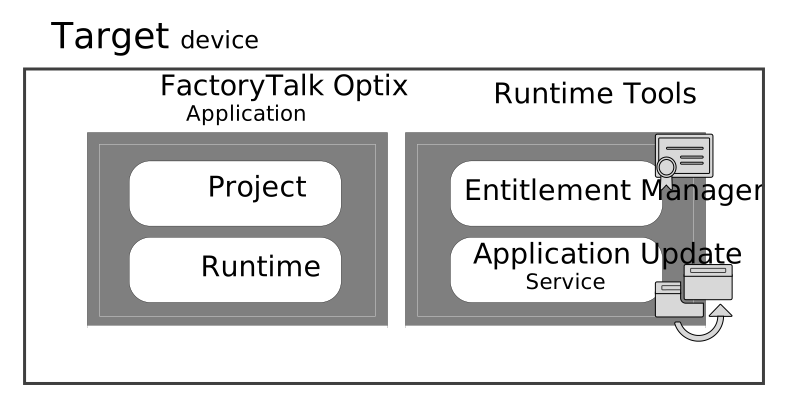
FactoryTalk Optix Application
Includes two components:
- Project: Represents the design and configuration of the application.
- Runtime: The environment where the application runs.
FactoryTalk® Optix™ Studio enables application creation by combining the project with the appropriate Runtime,
which depends on the target device and operating system.
FactoryTalk Optix Runtime Tools
Install the Runtime Tools package on the target device for entitlement management and application deployment.
The package includes:
- Application Update Service: Background service allowing
FactoryTalk® Optix™ Studio to connect to the target device and deploy applications. - Entitlement Manager: Application managing
FactoryTalk® Optix™ entitlements.
IMPORTANT: Runtime Tools are embedded in OptixPanels™ and Embedded Edge Computes (EEC).
Download, install, and activate Runtime Tools for Windows and Linux devices.
Step by step Setup Guide
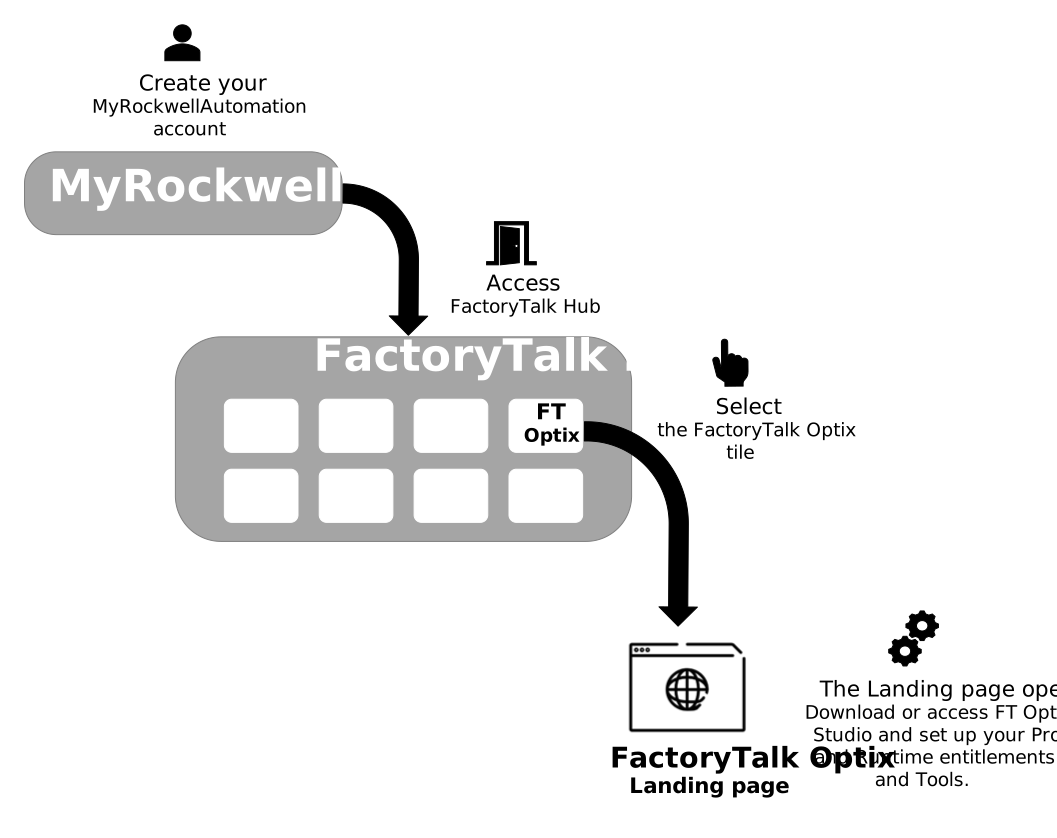
- Check System requirements and see FactoryTalk Optix architecture.
- To access your FactoryTalk® Optix™ application, you must access FactoryTalk Hub first. To access FactoryTalk Hub, you must create your MyRockwellAutomation account.
- Log in to FactoryTalk Hub To use FactoryTalk® Hub™, you must belong to a FactoryTalk Hub organization. See Join or create a FactoryTalk Hub organization.
A company is typically associated with an organization that company users can join.
All entitlements activated for a company are allocated to the organization.
- Configure your FactoryTalk® Optix™ Studio:
- Go to Access the FactoryTalk Optix landing page.
- Start your configuration with the Initial settings on the FactoryTalk Optix Landing page.
- To download your locally installed FactoryTalk Optix Studio or access your cloud-enabled FactoryTalk Optix Studio, see FactoryTalk Optix Studio.
- (Optional) Set up a FactoryTalk® Optix™ Pro entitlement:
- Go to FactoryTalk Optix Studio Pro entitlement.
- Purchase a FactoryTalk Optix Studio Pro entitlement
- Allocate a FactoryTalk Optix Studio Pro entitlement to your organization
- Activate a FactoryTalk Optix Studio Pro entitlement
IMPORTANT:
FactoryTalk® Optix™ Studio Pro entitlements are assigned to specific users,
whereas FactoryTalk® Optix™ Runtime entitlements are assigned to specific Runtime devices. - Start FactoryTalk Optix Studio Pro and log in using your MyRockwellAutomation account.
- Select the Organization previously associated with your account and for which you purchased an entitlement.
- Set up a Runtime entitlement:
- Calculate the size of your Runtime using the Runtime Sizing calculator.
- Access the Entitlements page to purchase, allocate, and activate a Runtime entitlement as described in the FactoryTalk Optix Runtime setup section.
- Once you have created your application, use the Device Sizing calculator to identify the optimal device to run your FactoryTalk® Optix™ application.
Frequently ask questions
To learn about all the software and hardware requirements for FactoryTalk® Optix Studio™ desktop editor, FactoryTalk® Optix Studio™ web editor and FactoryTalk® Optix™ applications, refer to System requirements.
Set up network ports correctly when using FactoryTalk® Optix Studio™, FactoryTalk® Optix™ Runtime Tools, or your application.
Refer to the network ports listed in Network ports configuration to set up your network ports for:
- FactoryTalk® Optix Studio™ editor
- FactoryTalk® Optix™ Runtime Tools
- Your application
Multiple FactoryTalk® Optix Studio™ installation versions can coexist on a single device.
Newer installations do not automatically replace older versions.
FactoryTalk® Optix Studio™.
Each version is stored in a separate folder organized by version number under:
Program Files > FactoryTalk Optix
Multiple FactoryTalk Optix Studio installations can run simultaneously on the same device.
Multiple VPN network interfaces are also installed together with their related
FactoryTalk Optix Studio installations.
If you attempt to open the same project in another FactoryTalk Optix Studio instance,
the system displays the following warning message and prevents duplicate access:
“The project shares the same name as another project currently open in a different FactoryTalk Optix Studio instance.”
- Log in to GitHub from each FactoryTalk Optix Studio instance by navigating to:
Settings > Version Control - When a FactoryTalk Optix Studio instance is no longer required,
uninstall both the software instance and its related VPN network interfaces. - During installation of a newer FactoryTalk Optix Studio version,
a dialog box prompts you to choose whether older installations should be overwritten.